



MyPCU Digital Banking
Your money, your way. Wherever life takes you.
MyPCU gives you simple, secure access to your Peninsula accounts anytime, anywhere. Check balances, transfer money, deposit checks, pay bills, manage cards, and stay connected to your finances, all from one convenient digital banking experience.
Everything You Need, All in One Place
Learn how to manage accounts, move money, deposit checks, set alerts, and more.
Disponible en Español
Your MyPCU home base
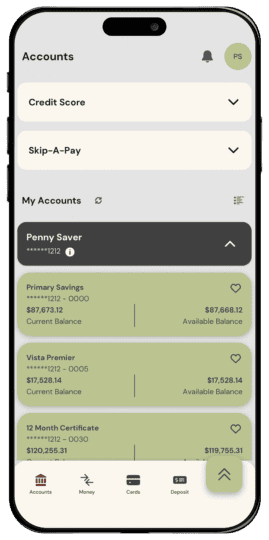
The dashboard gives you a quick view of your Peninsula accounts, balances, recent activity, loans and other important information. You can organize the screen so the accounts and features you use most are easy to find.
From your dashboard, you can:
- View balances and recent transactions
- Open account and loan details
- Make payments or transfers
- Rename or organize eligible accounts
- Customize which information appears first
Helpful tip:
Take a few minutes after your first login to explore and customize the dashboard. Setting it up the way you like now can make everyday banking faster later.
Move money where it needs to go
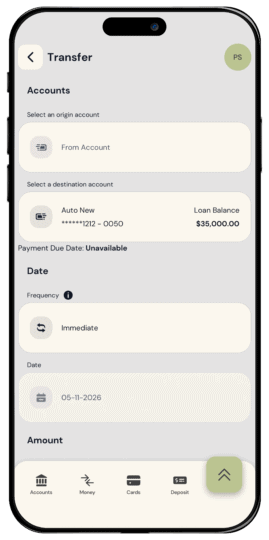
MyPCU makes it easy to transfer money between eligible Peninsula accounts and linked accounts at other financial institutions.
Depending on the account and transfer type, you may be able to:
- Make a one-time transfer
- Schedule a future transfer
- Create a recurring transfer
- Review upcoming and completed transfers
- Link an eligible account at another financial institution
Helpful tip:
Before submitting a transfer, double-check the account you are moving money from, the destination account, the amount and the transfer date.
If you use recurring transfers, review them periodically to make sure the dates and amounts still meet your needs.
Pay bills without writing checks
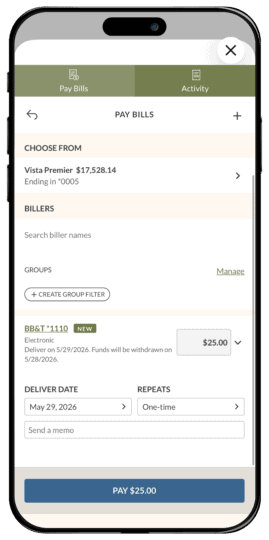
Bill Pay lets you send payments to eligible businesses and individuals from your Peninsula checking account.
You can:
- Add and manage payees
- Make one-time payments
- Schedule recurring payments
- Review upcoming payments
- View payment activity and history
Helpful tip:
Schedule payments early enough to arrive by the due date. The delivery date shown in Bill Pay may be different from the date the money leaves your account.
After setting up MyPCU for the first time, review your payees, recurring payments, payment dates and amounts to make sure everything looks right.
Temporary conversion note:
Bill Pay information from the previous system will carry over to the primary account holder’s MyPCU login. Joint account owners may see different Bill Pay information when using their individual logins.
See more of your financial picture
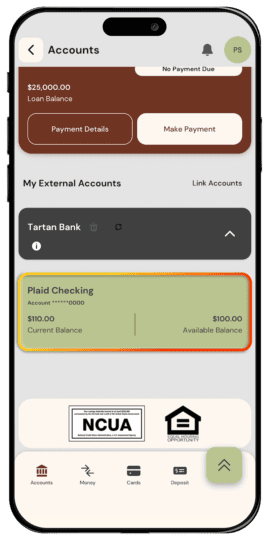
MyPCU lets you connect eligible accounts from other financial institutions so you can view outside balances and recent activity from your dashboard.
Depending on the account and financial institution, you may be able to:
- Link an eligible external account
- View outside account balances
- Review recent activity
- See more of your finances in one place
- Add an eligible external account as a transfer destination
Helpful tip:
Linking an external account from your dashboard is for viewing account information only. To transfer money to or from an external account, go to Move Money and add the account in Manage Destinations.
Stay connected to your accounts
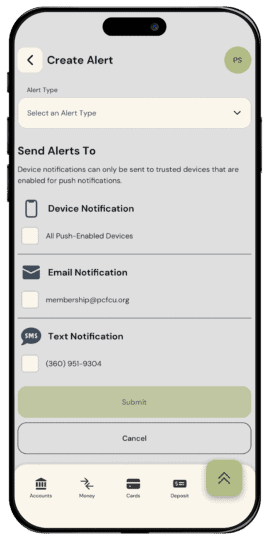
Alerts can help you keep track of balances, transactions, deposits, withdrawals, payments and other important activity.
Available alert options may include:
- Balance alerts
- Deposit and withdrawal alerts
- Transaction notifications
- Payment and transfer reminders
- Security-related notifications
- Account or loan updates
You may be able to receive alerts by email, text message, push notification or another available method.
Helpful tip:
Choose alerts that are useful to you without turning on so many that important notifications get lost. Also make sure your phone number and email address are current.
Review your alert settings after enrolling in MyPCU, since some preferences may need to be created again.
Stay informed. Help protect your account.
Learn how MyPCU uses multiple layers of security to help protect your digital banking access—and how you can strengthen that protection. These videos explain verification codes, common warning signs, Account Alerts, Security Notifications, and what to do when activity doesn’t look familiar.
- Learn how MyPCU uses verification codes and other security features to help protect your account
- Set up Account Alerts and Security Notifications for the activity that matters most to you
- Know what to do if you receive an unexpected code, notification, or alert
- Recognize suspicious activity and contact Peninsula Credit Union quickly when something doesn’t look right
Helpful tip: Never share your MyPCU password or verification code with anyone who contacts you unexpectedly.
1. Register Your Account
Select “Register” in MyPCU from our website or mobile app. You’ll need your account number or debit card number, social security number or ITIN, and birthdate to confirm your identity. You’ll also receive a verification code to verify access — make sure your phone number and email address are current on your account to receive this code.
2. Create Your Login
Each member will create their own username and password. This will allow access to all accounts you are authorized to transact upon. For your security, do not share your login credentials with anyone, including another account owner.
3. Make MyPCU Your Own
Organize and nickname your accounts, customize your dashboard, set up alerts, review transfers, manage Bill Pay, and choose eStatement and notification preferences.
MyPCU Mobile Banking
Monitor your accounts and pay bills
Find branch and ATM locations
Send and receive trusted communications with Peninsula
Find the MyPCU Mobile App here:


(Click to download)
Donna, SheltonWe have several accounts to manage, and Peninsula helped us link them online. Now I can transfer money between accounts and use nicknames to keep everything organized. I’m glad they are always so willing to help.”
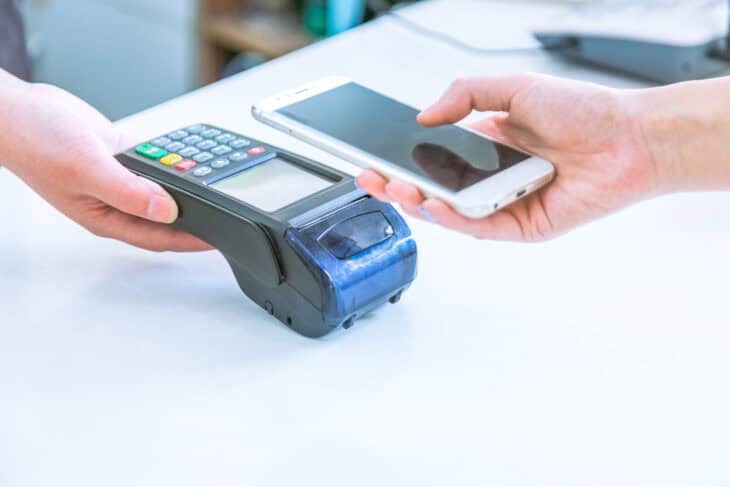
Pay with the device you already carry
Add an eligible Peninsula debit or credit card to a supported digital wallet for quick, secure purchases using your phone, smartwatch, or other compatible device.
Digital wallets can help protect your card information by using a unique digital account number instead of sharing your actual card number with the merchant.
With a digital wallet, you can:
- Make contactless purchases at participating businesses
- Pay in supported apps and websites
- Use an eligible phone or wearable device
- Keep your physical card information more secure
Follow the setup instructions provided by your device or wallet provider.
Important documents, available when you need them
Access eligible statements, notices, and tax documents securely through MyPCU from your computer, phone, or tablet.
Electronic documents can help you:
- View statements and notices without waiting for the mail
- Access past documents in one secure place
- Reduce paper clutter
- Receive certain notices sooner
- Review account information from your mobile device
Helpful tip:
Make sure your email address is current so you can receive notifications when a new statement or notice is available.

Digital Banking offers instant access to all of your Peninsula Credit Union accounts 24/7, from your desktop and mobile devices.
Use Online Banking to:
- View account balances and history
- Create budgets and track spending
- Transfer money between your accounts
- Review your dividend earnings
- Access your eStatements and eNotices
- View loan account information
- Use Bill Pay to make payments
- Transfer money to any member’s account
Enroll in MyPCU digital banking today directly from pcfcu.org! To get started, you’ll need your member/account number, access to your email account on file and your mobile device (if applicable).
You can also enroll directly from your mobile device by downloading the app from the Apple or Android stores. (Available after July 13.)
When logging into MyPCU, enter your User ID. If you’re having trouble logging in, your password may need to be reset. You can reset your password yourself by clicking “Trouble Signing In?” From there, you can request a password reset link. Follow the steps to reset your password and log into MyPCU.
No. We have a Pay Now option that is not connected though online banking. Click here to pay your loan.
Bill Pay is a service of Peninsula Credit Union that allows you to pay your bills online. You can pay virtually anyone, anytime, anywhere in the United States. Making payments online is one of the most efficient and economical features of Online Banking. It saves you the time of writing checks, trips to the mailbox, and time at the post office. It even saves you the cost of stamps. In addition, you can elect to receive e-Bills from a large number of companies such as major credit cards and wireless phone providers.
Plaid is a secure connection service that helps you link accounts you have at other financial institutions to MyPCU. When you choose to connect an external account, Plaid helps verify your account ownership and securely shares the account information needed to display that account in MyPCU.
When you link an external account in MyPCU, you’ll be asked to search for your other financial institution and sign in using that institution’s online banking credentials. Plaid then helps create a secure connection between that institution and MyPCU. In most cases, this allows you to view balances and recent activity from your linked account directly inside MyPCU.
Plaid uses security tools such as encryption and secure connection technology to help protect your information. You are in control of whether you choose to connect an account, which account you connect, and when you want to disconnect it. As always, only enter your login information when you started the connection yourself from inside MyPCU. Peninsula Credit Union will never call, text, or email you asking for your password, verification code, or PIN.
Yes. To transfer money to or from an external account, you’ll need to set that account up as a transfer destination within the Money section of MyPCU.
Sometimes an external account may need to be reconnected. This can happen if your other financial institution changes its login process, requires a new security step, updates its system, or if your online banking password changes. If your linked account stops updating, try reconnecting it in MyPCU. If the issue continues, the connection may be temporarily unavailable through Plaid.
Quick Tip!
Create a unique password for MyPCU that you do not use for any other account. Never share your password or verification code. Peninsula Credit Union will never ask you to provide either one.

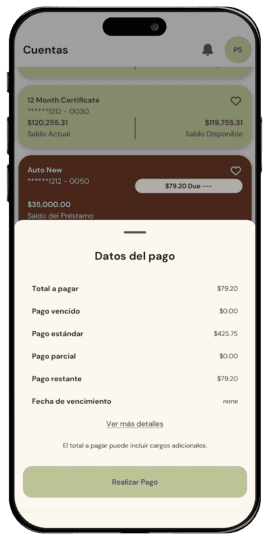
MyPCU gives members the option to use online and mobile banking in Spanish.
You can change your preferred language from the MyPCU menu and use many common digital banking features in Spanish, including account information, transfers, payments, alerts, and settings.
Spanish instructions and helpful resources are also available to help you get started.
Still have questions? Our team is ready to help with whatever you need.